
Like Binance and Bybit, OKX allows you to trade coin options. In this post, we'll cover how to trade options on OKX and how to use them properly.
What are Bitcoin options?
Bitcoin options are options trading on Bitcoin. In general, you can trade options on Bitcoin, Ethereum, Solana, BNB, Ripple, and Dogecoin, as well as some of the larger cryptocurrencies.
Also Understand your options firstshould be done. Please be aware of these things before you trade.
Here's the super quick summary.
- An option is buying the right to ‘buy (or sell) at that price,’ like buying a house for sale.
- The price you pay for that right is the premium.
- Option buyers can only lose the premium price, but they can earn unlimited profits when they make a profit.
- Conversely, the seller of an option earns the premium, but can lose an unlimited amount of money if the option goes into the red.
- As a condition for this transaction to go through, there is a contract closing date. This is the expiration date.
In other words, an option is the act of buying or selling the right to buy a stock at a price that will be more or less than the price you bought it at by the expiration date.
How to Trade OKX Options
From OKX signup to deposit
If you are not already receiving the automatic payback of OKX trading fee 20%, please refer to the link below.
Also, see how to deposit with OKX on Upbit below.
Transferring assets after buying BTC/ETH
Options on OKX have a slightly unusual structure. It's a format where you trade based on the coin you want to trade.
So before you can trade, you need to buy BTC or ETH and transfer it to your trading wallet.
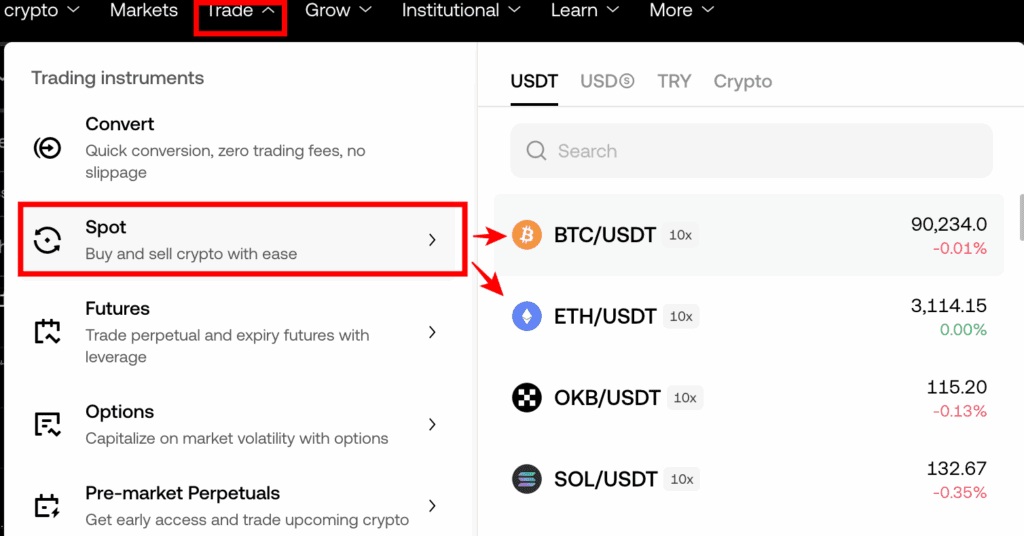
Buy Bitcoin or Ethereum (the coin you want to trade) with your USDT or USDC.
Go to the Options Trading screen
You will now be taken to the options trading screen.
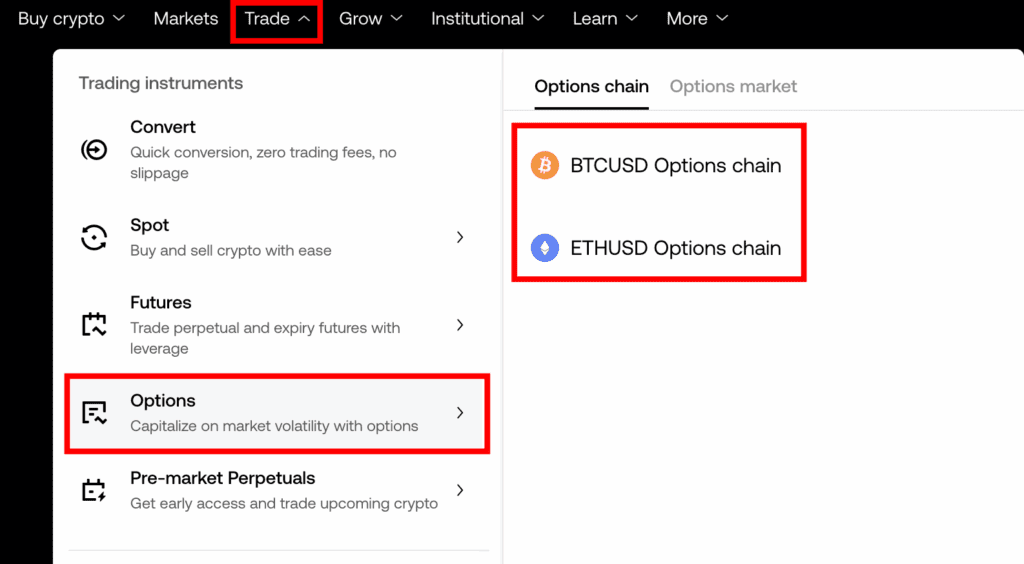
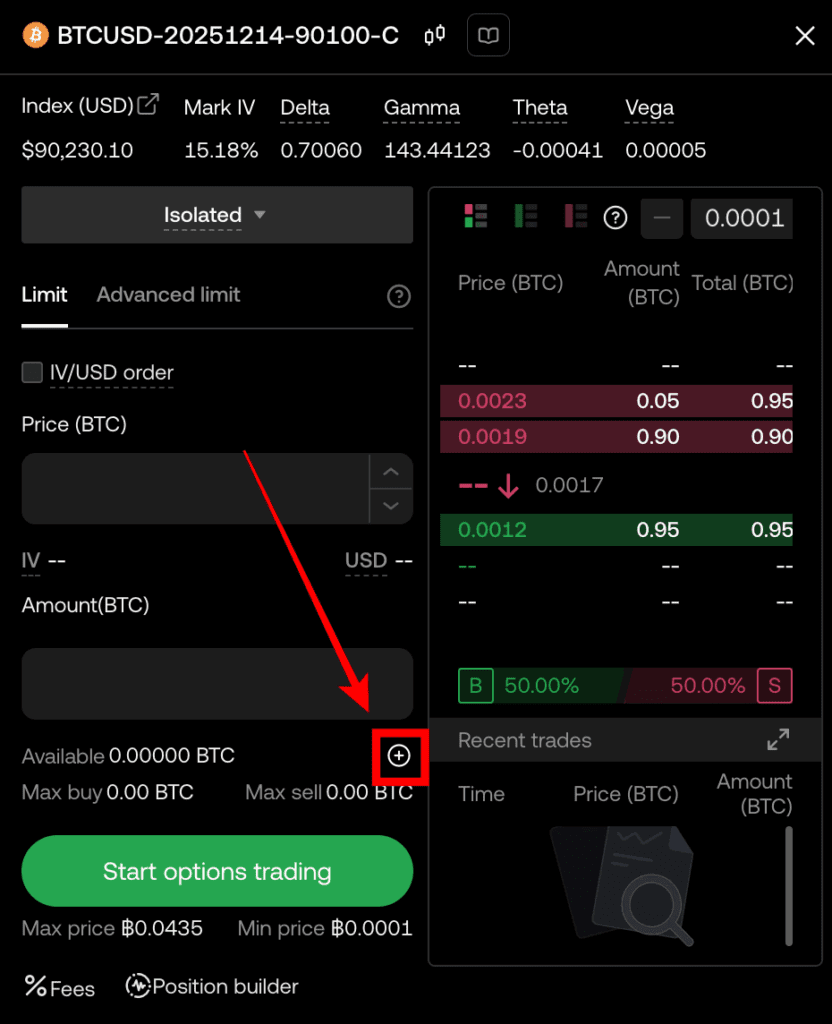
Once you're there, click anything under the date.

You should then see the screen on the right, as shown below. Click the +.
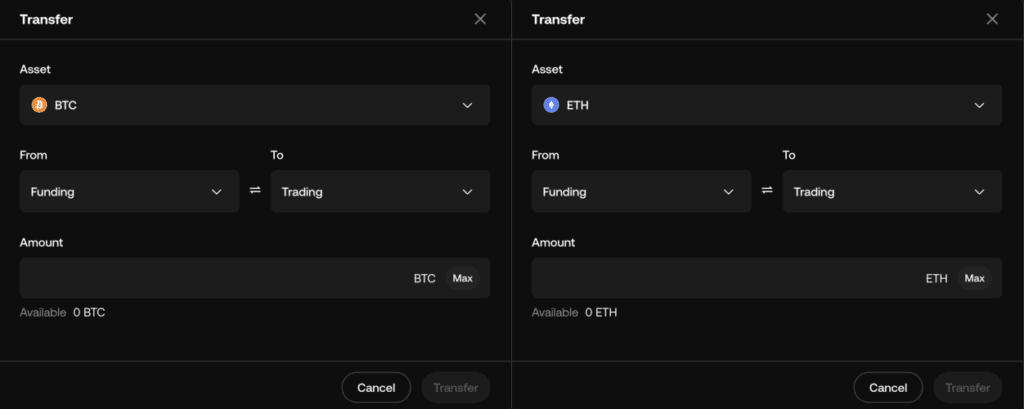
You will automatically be taken to the transfer screen for that asset. Click Max, move the asset, and you're ready to trade.
Click the Start Trading Options button
When you first start trading options, you're not trading yet, and you see a button in the order book that says Start options trading. Click this button.
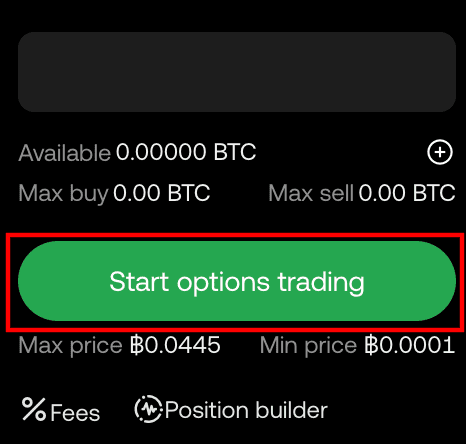
You can then press confirm without doing anything else and it will be activated.
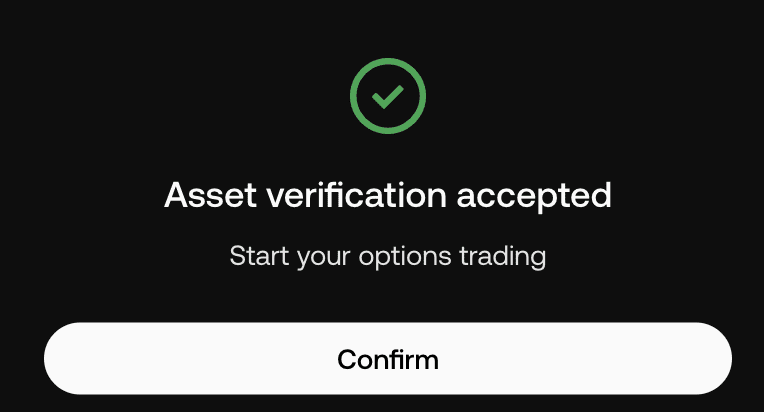
It should look like the button below. Note: If you haven't verified your KYC yet, you won't be able to activate it.
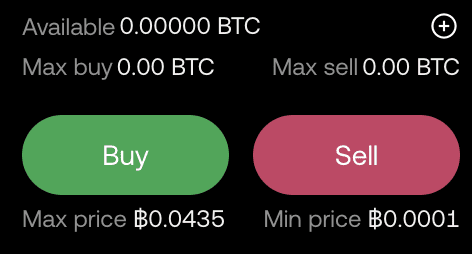
Check the price and buy calls/puts
If you look at the expiry dates and click on the expiry date that you think will rise or fall within this period, you will see Calls / Puts as shown below.
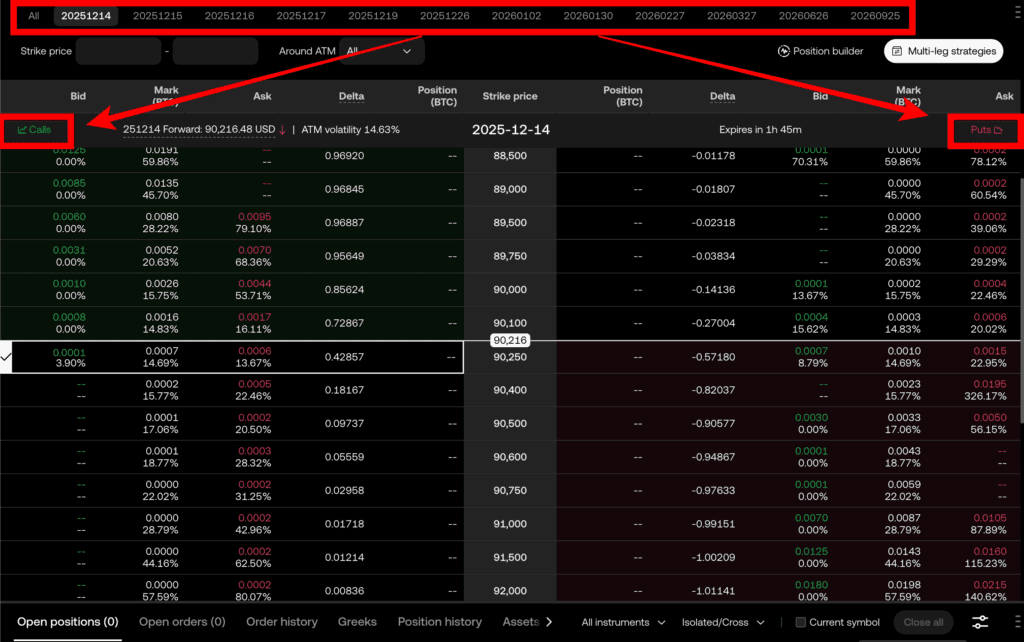
Think of a call as a long position, and a put as a short position.
However, if you buy a call, you are only betting on the price going up, and if you buy a put, you are only betting on the price going down. If you want to see what the current price is in the order book, hover your mouse over the area where the order is located and the price will appear.
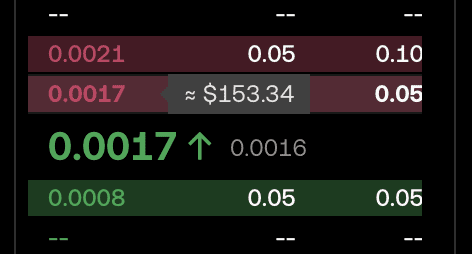
In the above situation, 0.0017 BTC is worth $153.34, which means you need $153 to buy a 0.0017 BTC option.
I buy the bit at the current out-of-the-money price of $90183 thinking it will go above $90250, as shown below.
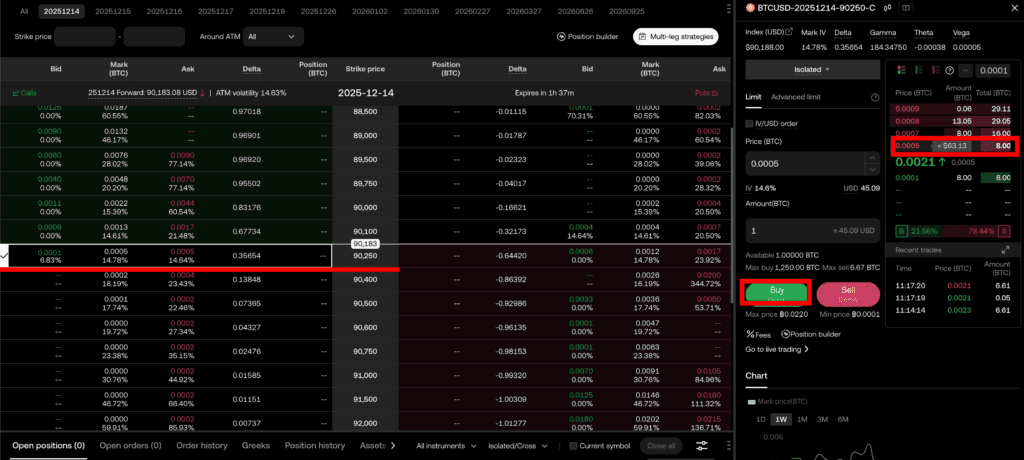
Orderbook interface
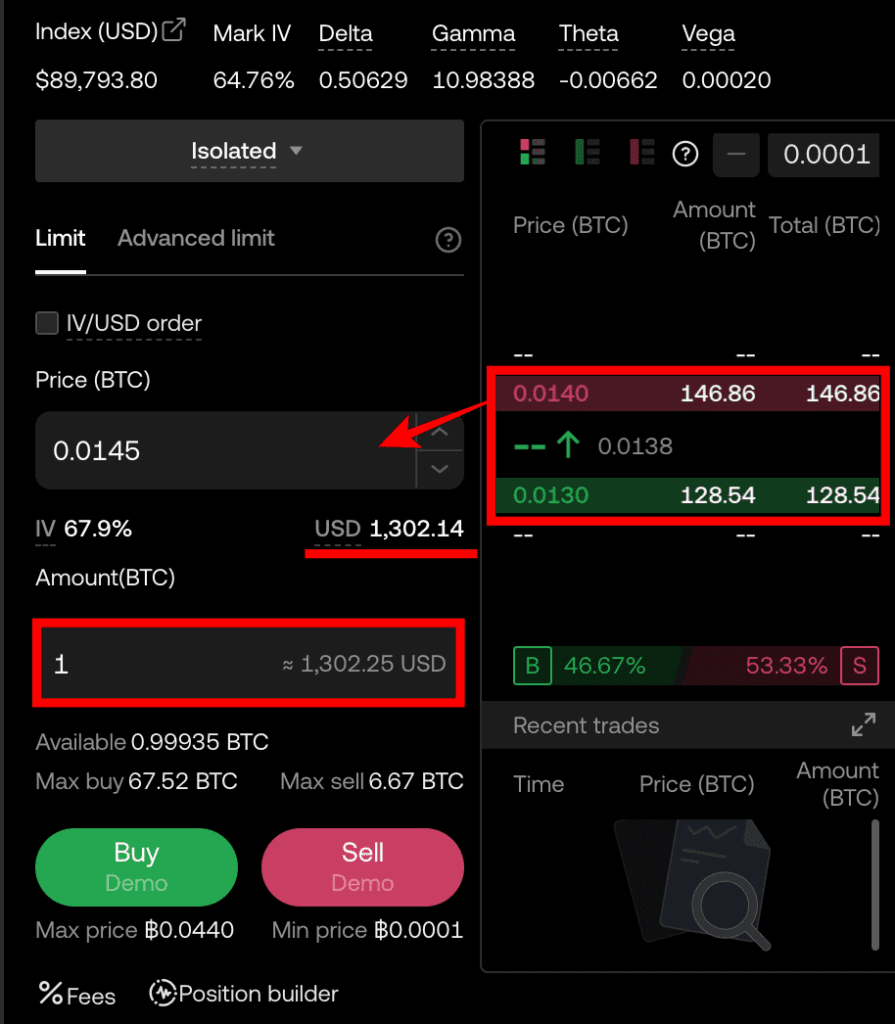
Click on the BTC order in the order book on the right and it will be entered in Price(BTC) on the left.
In this state, you can enter an amount to buy or sell and it will automatically show you how much the premium is. You can buy or sell from this state and the trade will go through.
Setting the option trading unit
You can change the units when trading options. Enter settings.
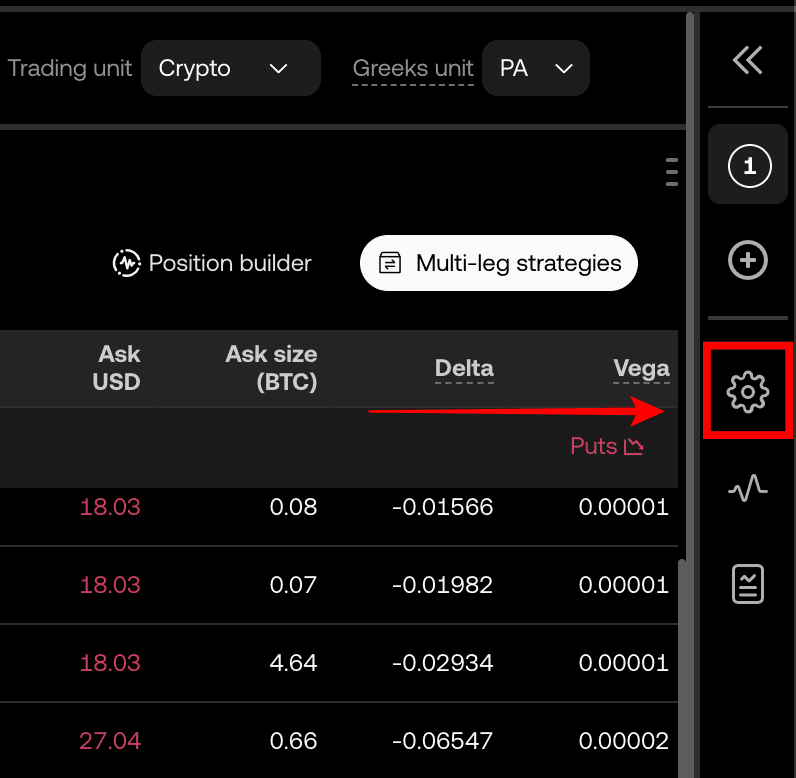
Click Options Trading unit.
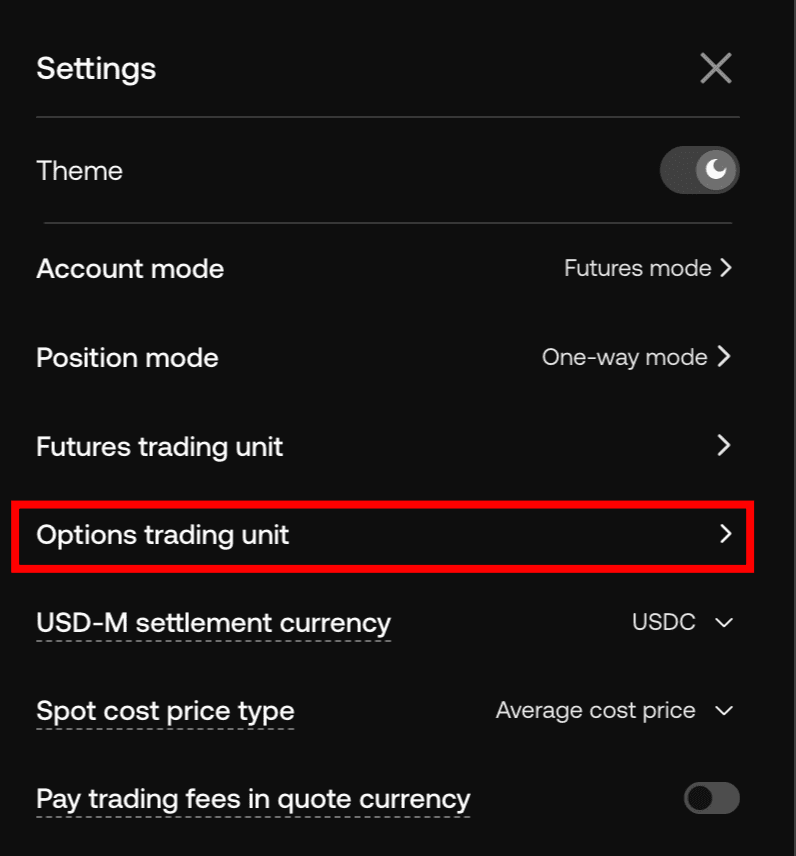
Here's what it looks like.
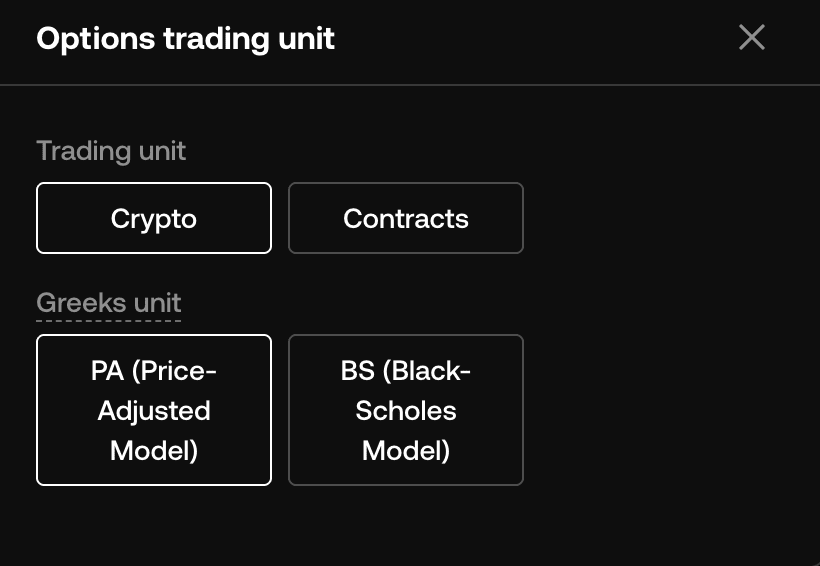
Crypto (cryptocurrency): Convert the position size to the underlying Amount of cryptocurrency(e.g., 0.1 BTC option).
Contracts (contract): Set the position size to Standard number of contracts set by the exchange(e.g., 10 Contracts).
Price-Adjusted Model (PA): Price adjustment modelsfor options. It uses a model that is adjusted to reflect market price volatility when calculating the value and risk of an option.
Black-Scholes Model (BS): Black-Shoulders Modelfor options. This is the most classic and famous mathematical model for theoretically pricing options. (This model often assumes market inefficiency, so variations of the model are often applied in real markets.)
If you're not familiar with options trading itself, set it to crypto / PA, which is the default setting.
How to use OKX
We have gathered all the previously compiled exchange usage guides and Q&A into a roadmap for easy viewing. Please bookmark and use it.
[Check Crypto Exchange Usage Guide]