We'll explain how to trade futures on OKX, how to set leverage, what is cross-isolated, and the difference between long and short positions. Read on and make sure you don't make any mistakes.
Things to do before trading futures
First, if you are not already receiving 20% payback on OKX, please sign up at the link below to automatically receive trading fee payback every hour.
💰 OKX $20\%$ Payback JoinIf you've signed up, but haven't started trading yet, there is a way to add referrals after signing up. Follow the link below to learn how to transfer referrals to Self.
After signing up, check out how to deposit to OKX from your local exchange like Ubit, Bithumb, etc.
Transfer from a spot wallet to a gift wallet
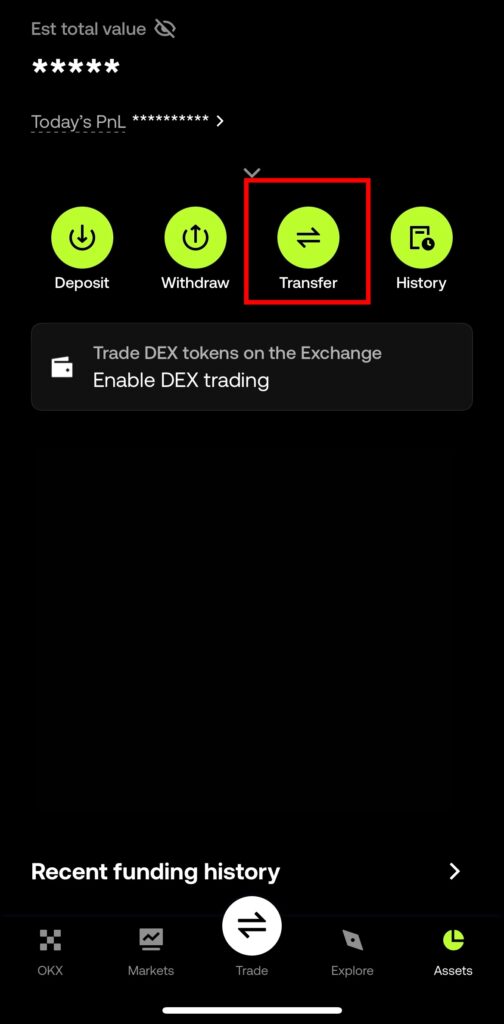
All deposited money is in the spot wallet. In OKX, the spot wallet is labeled Funding. Click Assets at the bottom and then Transfer in the middle.
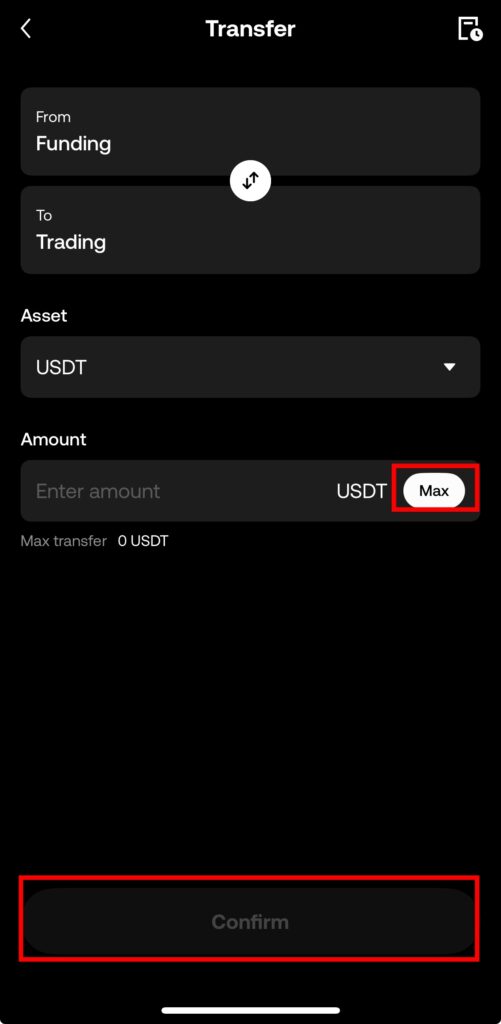
Make sure that Transfer is set to Funding to Trading, click Max, click Confirm, and the money will be transferred to your futures trading account.
How to Trade OKX Futures
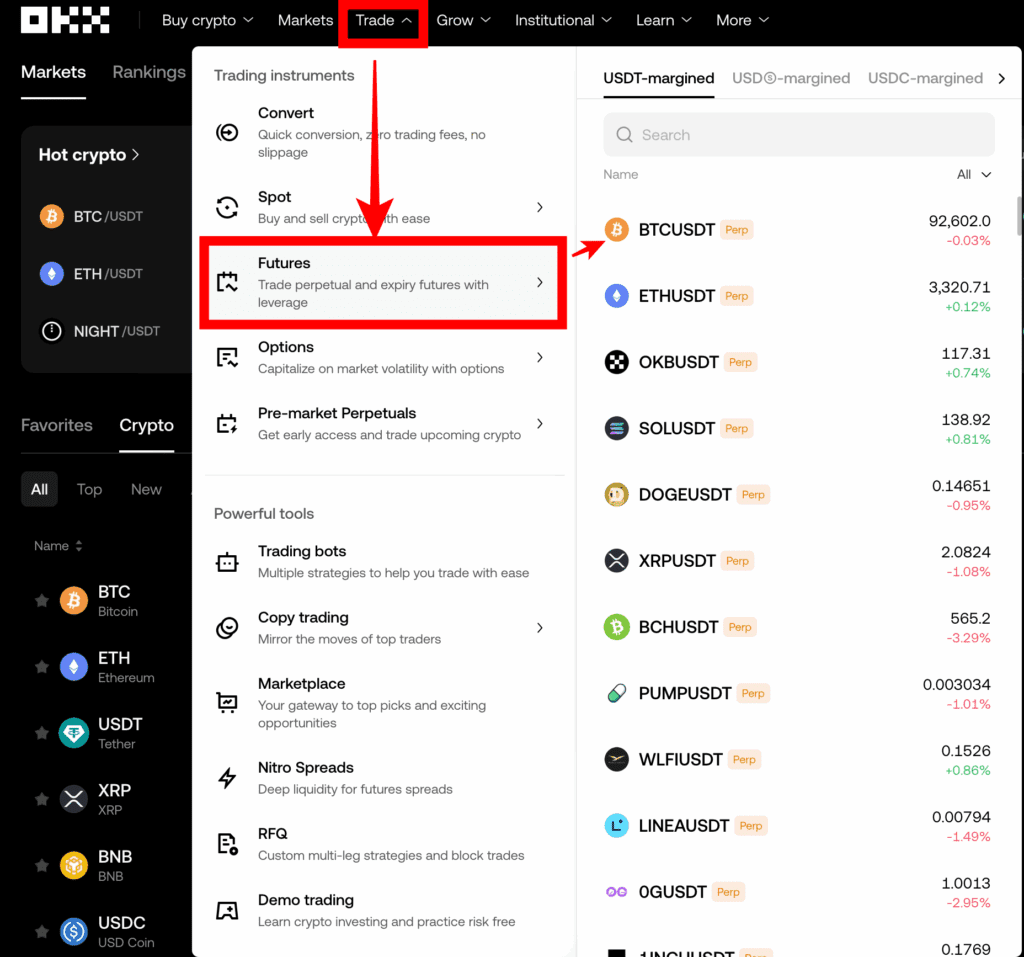
First, click trade - Futures on OKX and select the coin you want to trade. I'm going to enter BTCUSDT, which is Bitcoin.
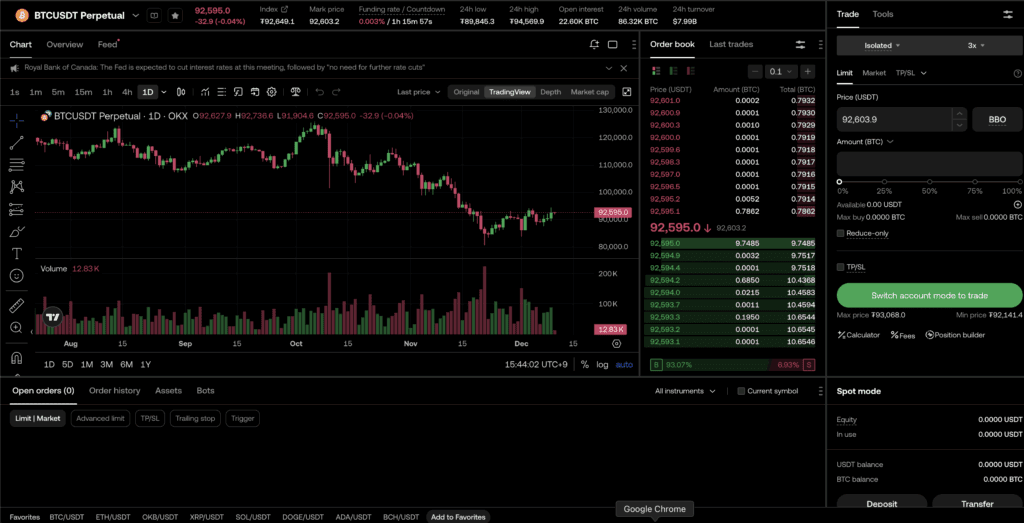
When you enter, you'll see the screen below. First, instead of asking you to agree to understand the risks of futures trading, OKX will instead ask you to change your trading mode directly. If you look at the green bar in the bottom right corner, you'll see a button that says Switch account mode to trade.
You will see the account modes as shown below, all of them default to Spot mode, and you need to change the mode to Futures mode or Advanced mode to be able to trade futures. Let's select Futures mode.
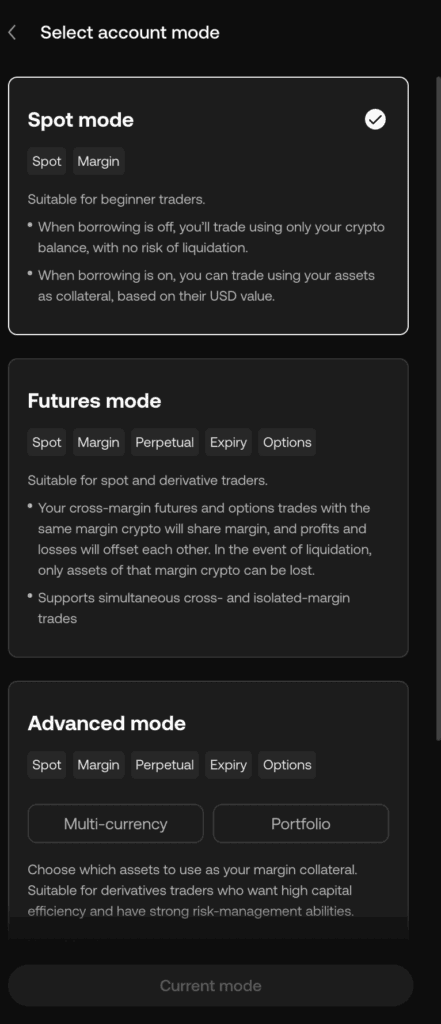
After selecting Futures mode and clicking Switch, you'll see the screen below.
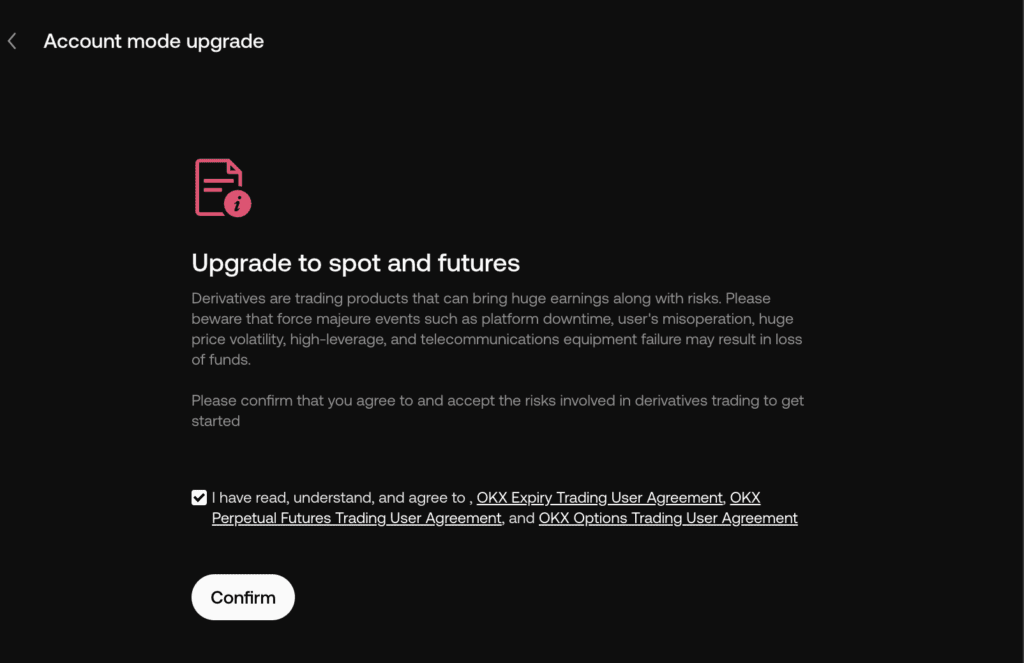
It says that you are upgrading from a spot trading account to a futures trading account. Click Confirm.
You will see the settings screen as shown below.
OKX Pre-Trade Settings
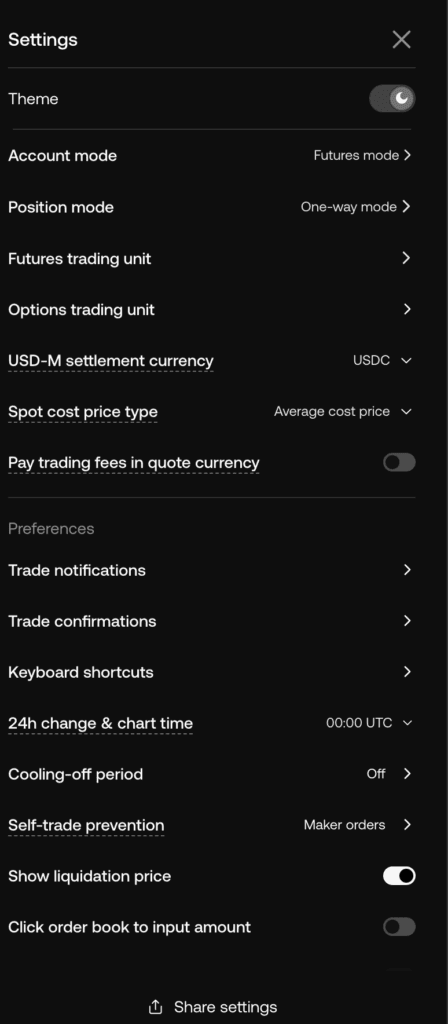
Here's how it all works, and if you're not familiar with all the features, just read the bolded text.
- Theme (Theme): Click the button to toggle dark mode on/off.
- Account mode (account mode): You can switch back to spot/futures/advanced account mode at a later date, just as you switched from spot to futures account mode earlier.
- Position mode (Position mode): You are currently in one-way mode, which means you can only trade in one direction at a time. To enable two-way trading (hedge mode), click to change the mode.
- Futures trading unit (Futures trading unit): This sets the trading unit for futures trading, which can also be changed in the order book.
- USD-margined: Set the trading unit for futures contracts that use margin in a stablecoin such as USDT or USDC.
- Crypto (cryptocurrency): Displays the position size in terms of the amount of cryptocurrency that is the underlying asset (e.g. 0.1 BTC).
- USDⓈ (USDⓈ): Displays the position size in USD value (e.g. $7,000 USD).
- Contracts: Displays the position size in a standard number of contracts set by the exchange (e.g. 10 Contracts).
- 2. Crypto-margined: Sets the trading unit for futures contracts (typically COIN-M futures) that use volatile cryptocurrencies such as BTC or ETH as margin.
- Crypto (cryptocurrency): Displays the position size in terms of the amount of cryptocurrency that is the underlying asset (e.g. 0.1 BTC).
- USD (USD): Displays the position size in USD value (e.g. $7,000 USD).
- Contracts: Displays the position size in a standard number of contracts set by the exchange (e.g. 10 Contracts).
- USD-margined: Set the trading unit for futures contracts that use margin in a stablecoin such as USDT or USDC.
- Options trading unit: This is described in the How to Trade OKX Optionswhich we'll cover in more detail in the next section.
- USD-M settlement currency: All USD contracts will be settled in the currency set here. This can only be updated if there are no open positions or orders. USDT cannot be set.
- Spot cost price type: This is the method used for spot trading, which we'll cover in more detail in the Spot trading method.
- Pay trading fees in quote currency: This is also a feature used for spot trading, so we'll cover it in detail in How to trade spot.
Preferences (Preferences)
- Trade notifications (Trade notifications): Set up notifications to close a trade, schedule a buy or sell, etc.
- Trade confirmations (This is where you set whether the trader should be prompted for confirmation before making a mistake or placing an incorrect order. This can reduce mistakes, but is not suitable for fast trading such as scalping.
- Keyboard shortcuts (Keyboard shortcuts): This is where you set up keyboard shortcuts.
- 24h change & chart time (24 hour change & chart time): Don't touch these if you can help it.
- Cooling-off period: This is a window that allows traders to set a time limit to limit themselves if they are trading emotionally due to significant losses or wild swings. Once set, you will not be able to exit early, but you will be able to reorganize your open positions, such as by reducing your trade size or reducing your leverage.
- Self-trade prevention: Generally, you don't need to worry about this.
- Show liquidation price (Show Liquidation Price): Displays the price at which it will be liquidated.
- Click order book to input amount: This is a one-time or convenience feature, but you can use it if you want.
Futures Order Book UI/UX
Now let's do some actual trading, and the order book on the right-hand side is the most important because it contains all of the actual important features.
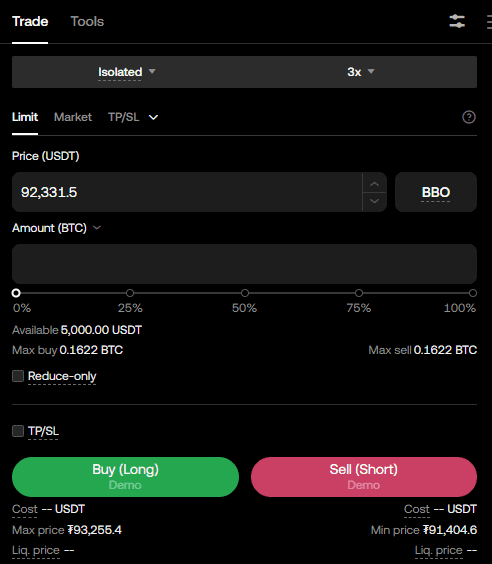
First, the two most important settings are at the top.
Isolation/Crossover Mode

Isolated is a mode where if you have a position, you will only lose the amount of your position if it goes against you.
For example, if you have a $100,000 long position with 10x leverage at $100,000, and the coin you're trading goes to -10%, it's actually -100% because you have 10x leverage, so you've lost $100,000, and that's it.
If you click on it, you'll see the Cross mode, which uses all the money in your futures wallet to maintain your position.
In the above situation, a cross-mode trade would have resulted in a loss of more than -1001 TP3T, so why use it? If you use very high leverage (say 100x), a move of only 11 TP3T would result in a loss of -1001 TP3T. So in this case, if you are confident in your position, you can use more margin to keep your position open even if the loss is bigger than your position.
Of course, you can also hold positions in cross mode and add margin later, but if you don't feel comfortable doing that all the time, just leave them in cross mode.
For beginners, we recommend using isolation mode whenever possible.
How to set leverage
The second is the leverage setting. If you click on 3x, you will see the screen below.
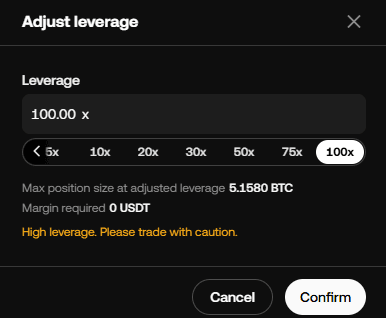
You can click to use a pre-determined leverage or enter your own. You can use up to 100x leverage, and while higher leverage means bigger profits, it can also mean bigger losses.
However, it will never drop below zero.
Set up your trading method
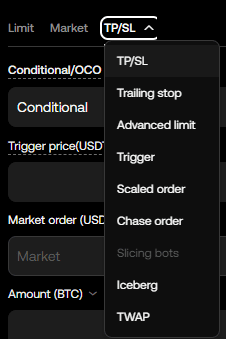
Limit is the limit price, also known as the maker. Market is the market price, also known as the taker. There are several functions, including TP/SL, Trigger, Trailing Stop, but the most commonly used are Limit and Market and Take Profit (TP)/Stop Loss (SL).
Let's start with the most commonly used limit and market prices.
A limit price is when you specify a price and your order will only be filled if it reaches that price. For example, if you go long on Bitcoin at $100,000, your order will only be filled if someone is willing to sell at $100,000. Fees tend to be lower than market prices.
So, for example, if the price of Bitcoin is $100,000 right now, and I sell at market price right now, I might get a bunch of trades at the same level, like $99,990 to $100,010. So, you're not going to get robbed at a perfectly accurate price, but you use it when you want to get out of a trade quickly. Use it to take advantage of spikes and dips, or to exit a position at the right time. Fees are usually double or more than the limit price.
Now, one of the most common things we use is stop loss and take profit, which are usually placed as a set. And a common misconception is that SL/TP are both sold at market price. It's not a limit trade, it's not a pending trade, it's a market trade, it's just that it automatically buys and sells at the market price when it hits that price.
In any case, SL is a schedule that indicates that I will stop trading when I reach a certain level of loss. TP is the opposite, indicating that I will stop trading when I reach a profit.
For example, if you're long Bitcoin at $100,000, you'd put a take profit (TP) at $101,000 and a stop loss (SL) at $99,000. Of course, since it's the market price, you may not get robbed at exactly that price, depending on the slippage or order volume at the time of the spike.
Amount price display
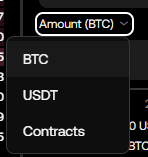
Below that, Amount is a number that indicates how much you want to trade, whether you want to trade in BTC, dollars, or Tether, and whether you want it to be displayed in Contracts.
For example, if you're trading Ethereum, if you trade with 1 BTC, you'll have a position worth 1 BTC. If the current price is $100,000, you'll have a $100,000 position.
For USDT, you can specify the dollar amount you want to trade. For example, if you want to trade $100, you can write $100.
The amount of contracts, or transactions per contract, varies depending on the coin being traded. This is the amount set by the exchange. The amount per contract changes depending on the price of the coin, and if you check the price per contract with 1x leverage, it looks like this.

A $3300 Ethereum contract is worth $110.
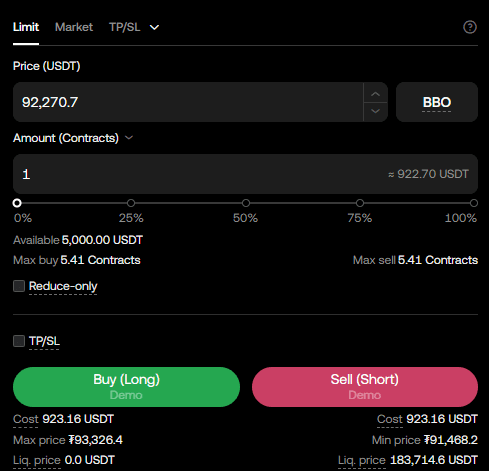
However, at the $92,000 level, one Bitcoin contract is worth $923.
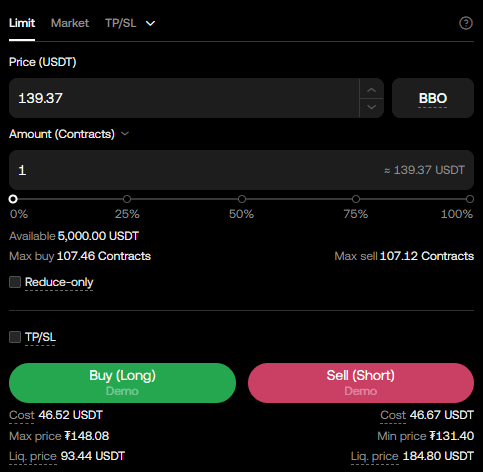
Also, one contract of Solana, which is at $140, is at $46. So the amount per contract is arbitrarily set by the exchange, so you can't really say, ‘How much is the coin, and how much is one contract.
If you're a beginner, you can trade in USDT, which is easier to calculate the exchange rate.
How to short a long position and close a short position
Now let's actually make a buy.
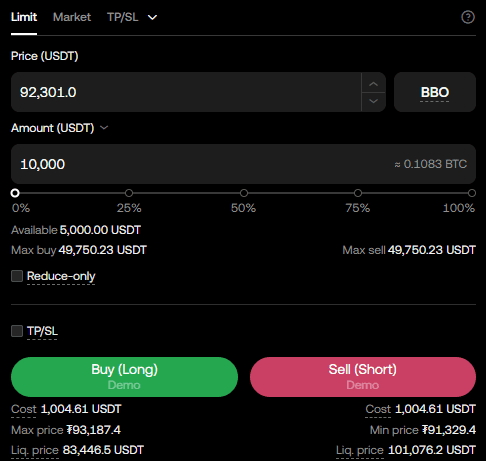
I'm going long for $10,000, and my current leverage is 10x. I place the long order by clicking the Buy(Long) button with my money in the form of $1,000.
You'll then be prompted to confirm the price or order.
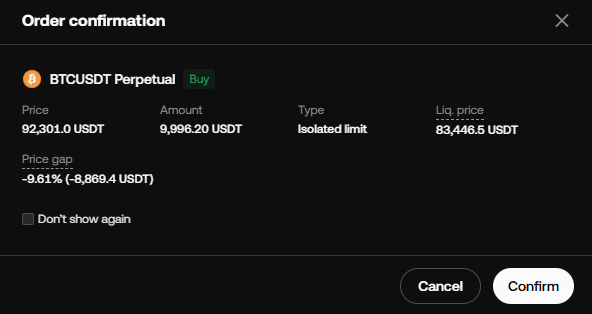
If you don't want to see the confirmation window, then click Don't show again. Click Confirm to place the order.
Once a position is filled, your position information will appear in Open positions, as shown below.
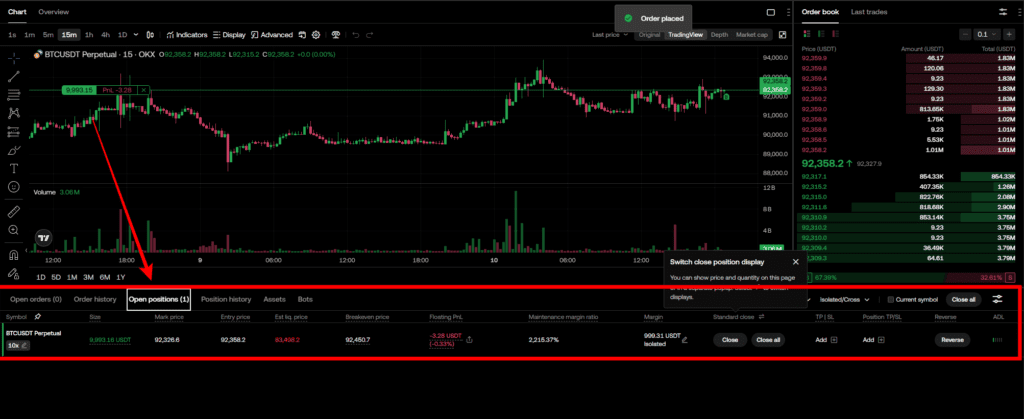
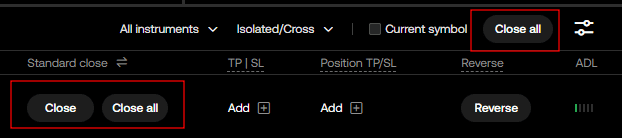
If you want to close the trade (close the position = liquidate), you can click Close all as shown below, or click Close separately for each position. Please note that if you choose to close your position this way, it will be liquidated at the market price.
If you want to close at your limit price, click Reduce-only to turn on only closing the position you have, not placing additional orders, and click the Sell(Short) button.
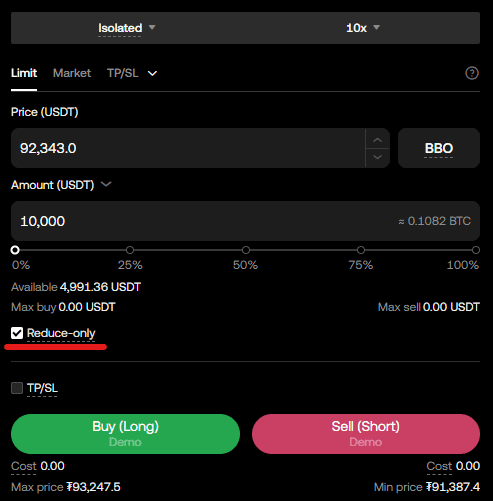
If you were short, you would have to do the opposite and click the Sell (short) button first to take the position and then turn on Reduce Only to buy (long).
How to use OKX
We have gathered all the previously compiled exchange usage guides and Q&A into a roadmap for easy viewing. Please bookmark and use it.
[Check Crypto Exchange Usage Guide]